VRR Explained: Why Variable Refresh Rate Makes Games Look and Feel Better
Variable Refresh Rate keeps your TV’s refresh cycle in sync with your console or PC so motion looks smooth, input feels responsive, and distracting artifacts like tearing and judder largely disappear—even when frame rates bounce around. This guide breaks down how VRR works on modern TVs and why it matters.
The core problem VRR solves
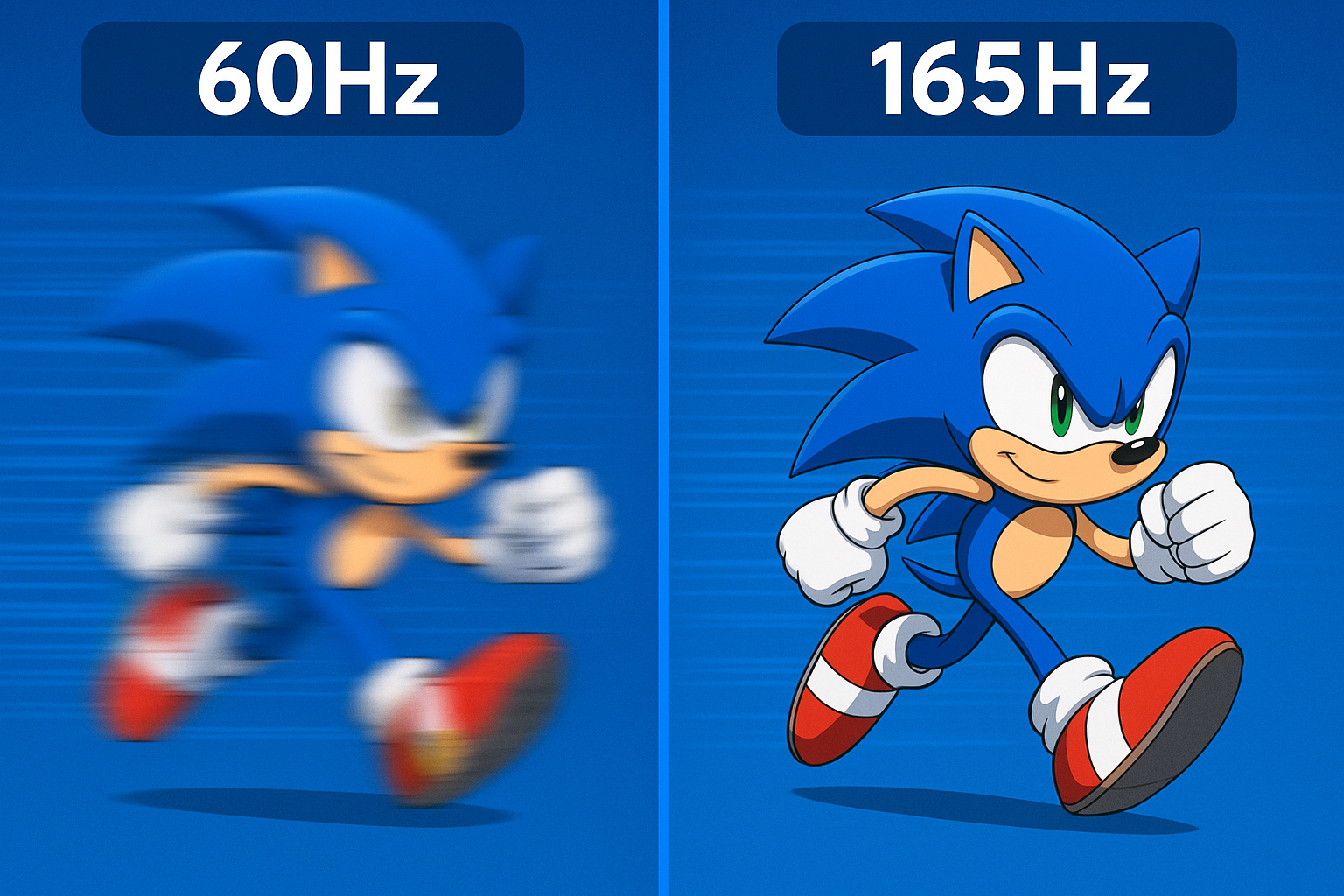
Every TV refreshes the screen a certain number of times per second—think 60Hz, 120Hz, or even 165Hz. Meanwhile, your console or PC is creating new frames as fast as it can, but the number of frames it produces isn’t perfectly steady. When these two rhythms drift apart, you can see two common issues. First is screen tearing: a horizontal seam where part of the screen shows the next frame while the rest shows the previous one. Second is judder or stutter, which appears as uneven motion because the TV displays some frames for longer than others while it waits for the next update. Both pull you out of the action.
Variable Refresh Rate aligns the TV’s refresh to the moment your console finishes each frame. Instead of forcing the TV to refresh at a fixed pace, VRR lets the display wait a fraction of a second and update exactly when a new frame is ready. The result is fewer tears, steadier motion, and a sense that the controller is more directly connected to what you see.
How VRR actually works (plain English)
Imagine a conversation where one person speaks at a fixed tempo while the other replies with natural pauses. A fixed-refresh TV never slows down or speeds up; it just keeps “talking,” sometimes cutting the other speaker off (tearing) or repeating itself until the reply arrives (stutter). With VRR, the TV listens and answers when the console finishes a sentence. Both sides stay in sync, so motion looks continuous even as performance fluctuates.
The key is timing. Unlike classic V-Sync on PCs (which can increase input lag), VRR coordinates delivery without making the console wait an extra cycle for the next refresh. That’s why it preserves responsiveness.

Interactive glance: “VRR Off” vs “VRR On”
The simple demo below simulates a moving object. The left pane mimics a fixed refresh with inconsistent frame arrival (steppy movement), while the right pane simulates VRR’s smoother pacing.
VRR Off (fixed refresh)
VRR On (refresh sync)
VRR, ALLM, and gaming modes on TVs
On modern televisions, VRR often arrives alongside ALLM (Auto Low Latency Mode) and a dedicated Game Mode. ALLM automatically switches the TV into a low-lag profile when it detects a console, trimming image processing to keep button presses feeling instantaneous. Game Mode further reduces extra post-processing, preserving sharpness and motion clarity while slashing input lag. Together with VRR, these features prioritize timing and smoothness over heavy processing, which is exactly what fast-paced games need.
Common formats and what to look for
You’ll see VRR listed in a few ways. On HDMI 2.1 devices (PS5, Xbox Series X|S, modern GPUs), it will be advertised simply as HDMI VRR. Some TVs also support AMD FreeSync, and PC-centric displays may mention G-SYNC Compatible. All pursue the same goal—synchronize the refresh cycle with the frame output—but compatibility varies. For a console-first setup, HDMI VRR is the essential spec.
Pay attention to the VRR range, which is the span of frame rates the TV can follow. Many 120Hz TVs support somewhere near 48–120Hz. If a game dips below the lower bound, a technique called LFC (Low Framerate Compensation) can kick in, presenting the same frame multiple times to stay in sync and keep the motion cadence stable. Wider ranges and reliable LFC deliver the most consistent experience.
Why VRR still helps on 165Hz or 120Hz sets
A higher refresh ceiling gives your TV more chances each second to land on the console’s new frame. That alone can reduce visible judder. But games rarely run at an absolutely even 60, 120, or 165 frames per second. VRR captures those in-between moments, lining the refresh up with reality rather than a neat fraction. Even at very high refresh rates, VRR continues to smooth out micro-stutter you might otherwise notice in panning scenes and fast camera turns.
When you’ll notice VRR the most
Rapid camera pans in open-world games, racing titles with sweeping turns, and shooters with quick aim adjustments are where VRR shines. You’ll also notice it when a game’s frame rate shifts as you move from dense cityscapes to simpler interiors. Instead of a sudden hitch, motion simply feels more consistent. And in competitive play, the benefit isn’t just visual—your inputs feel more directly tied to the on-screen response.
How to enable VRR on your setup
The process is straightforward. First, connect your console or PC to a TV input that supports HDMI 2.1 features and verify that the port is set to an enhanced or high-bandwidth mode in the TV’s settings. Next, make sure the console has VRR toggled on in its video settings. Finally, turn on your TV’s Game Mode or equivalent. If your TV shows per-input status overlays, you can confirm VRR is active once a compatible game is running.
VRR myths to set aside
One common misconception is that VRR magically raises frame rate. It doesn’t; it simply matches the display to the frame timing you’re actually getting. Another myth is that VRR is only helpful at very low frame rates. In truth, frame delivery is rarely perfect, so even fluctuations around 60 or 120 can create micro-stutter that VRR smooths out. Finally, some assume VRR increases input lag—on modern TVs designed for gaming, it’s the opposite: VRR works in the same low-lag paths as Game Mode and typically improves responsiveness.
Quick self-test you can try at home
Launch a game known for variable performance or a built-in 40–60 fps mode. Toggle your TV’s VRR setting off and on between identical scenes with lateral motion—slowly pan the camera across a fence, a city skyline, or a grid pattern. With VRR off, look for horizontal seams and little jumps in motion. With VRR on, those distractions should largely recede, leaving a cleaner, more connected feel to the action.
VRR quick answers
Does VRR work with every game?
Not every title outputs a VRR-compatible signal, but most modern games on PS5 and Xbox Series X|S do. Some titles enable it automatically; others follow your console system setting.
Will VRR reduce input lag?
VRR doesn’t add extra waits like classic V-Sync can. Used with Game Mode and ALLM, it typically preserves or improves the feel of responsiveness by avoiding mismatched refresh timing.
Do I need special cables?
Use certified Ultra High Speed HDMI cables for 4K 120/165Hz with VRR. For 1080p/1440p, High Speed may suffice, but certified 48Gbps cables eliminate guesswork.
Is 120Hz required for VRR?
VRR can exist at 60Hz, but a 120Hz or higher ceiling maximizes the benefits and keeps motion consistently smooth as performance fluctuates.
Bottom line
Variable Refresh Rate isn’t just a spec to check off—it’s a practical upgrade to how games look and feel on a modern TV. By synchronizing refresh timing to your console or PC’s real frame delivery, VRR suppresses tearing, reduces stutter, and keeps control latency tight. If you care about fluid motion and competitive responsiveness, it’s one of the most meaningful display features of this generation.