Author name: Technichole

Technichole is an Orlando, Florida–based home theater review site focused on TVs, soundbars, and smart setups that fit real homes and real budgets. We provide clear, honest guidance to help you build the perfect entertainment space without the hype.

Avatar photo
What The Spec

Streaming Platform Comparison: Roku TV vs Fire TV vs Google TV

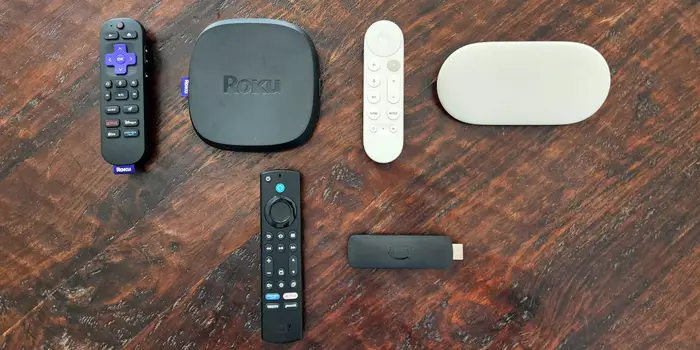
Streaming Platforms • Smart TV Comparison Roku TV vs Fire TV vs Google TV: Which Streaming Platform Rules Your Living Room? Choosing between Roku, Fire TV, and Google TV isn’t just about streaming apps—it’s about ecosystem, interface, voice control, and which platform actually makes your TV smarter. We break down the key differences, hidden features, and help you pick the perfect platform for your viewing habits. Streaming PlatformsSmart TVRoku TVFire TVGoogle TV Platform Interface Showdown Roku TV Fire TV Google TV 5,000+ Available Apps Roku Voice Voice Assistant Channel Store Content Focus Independent Ecosystem Key Features Massive 5,000+ channel store Simple, consistent interface Works with Alexa & Google Assistant Private listening feature The Big Three: Platform Overview Roku TV The neutral, app-focused platform that works with everything Massive 5,000+ channel store Simple, consistent interface Works with Alexa & Google Assistant Private listening feature Fire TV Amazon’s ecosystem player with deep Alexa integration Deep Alexa integration Strong Amazon content focus Gaming capabilities Live TV integration Google TV The recommendation engine that learns what you love AI-powered recommendations Google Assistant built-in Chromecast integration Watchlist across services Roku TV: The Switzerland of Streaming Roku takes a neutral approach to the streaming wars. Unlike its competitors, Roku doesn’t produce original content or heavily promote its own services. This platform-agnostic philosophy makes Roku the closest thing to an “open” streaming platform available. 🏪 Channel Store Largest selection of streaming apps and channels 🔒 Privacy Focused Less data collection than Google or Amazon platforms 🎧 Private Listening Use your phone as a private remote with headphones Fire TV: Amazon’s Entertainment Hub Fire TV is Amazon’s vision for the living room, deeply integrated with the Alexa ecosystem and Amazon’s content services. The interface prominently features Amazon’s own content while still providing access to other streaming services. Google TV: The AI-Powered Content Curator Google TV represents the search giant’s approach to television—an intelligent interface that learns your preferences and serves up personalized recommendations across all your streaming services. It’s the evolution of Android TV with a stronger focus on discovery.

What The Spec

QLED Explained: How Quantum Dot Technology Transforms Your TV Viewing Experience

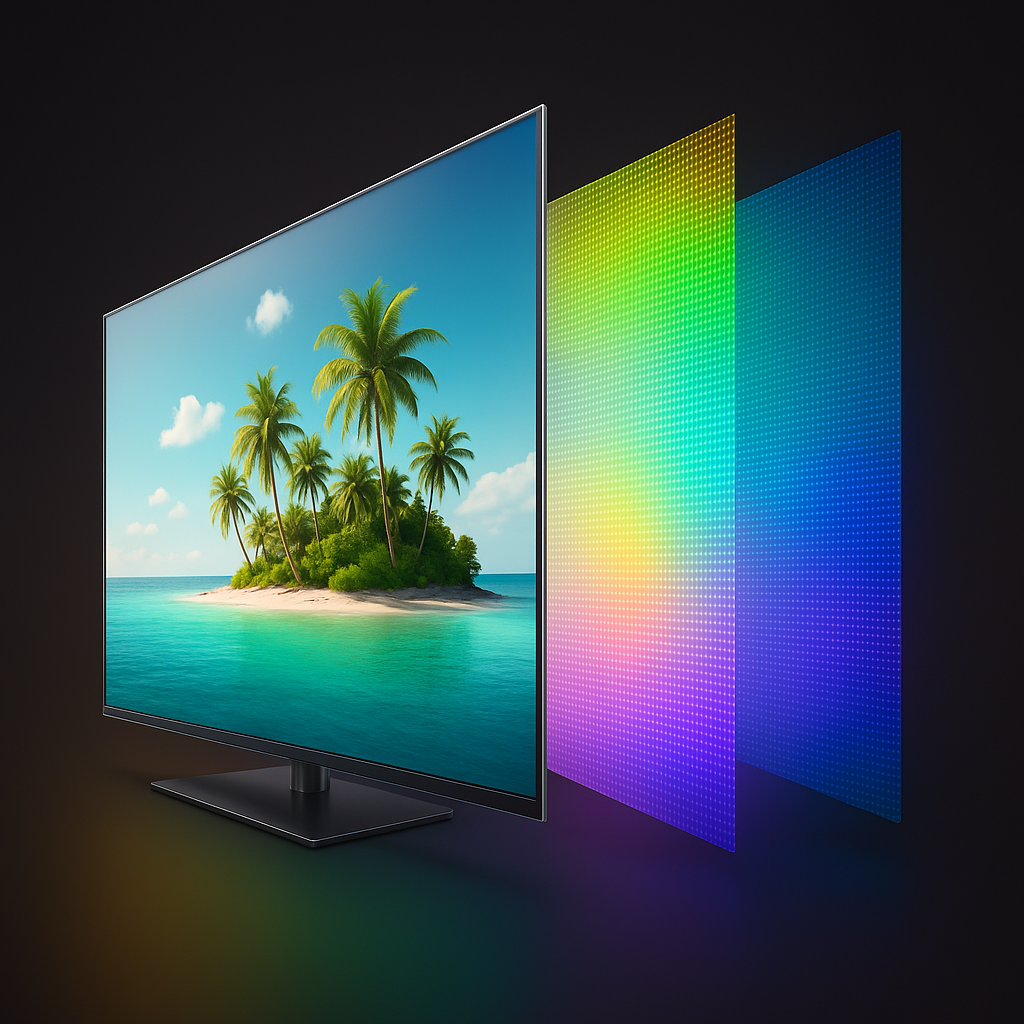
Technology Deep Dive • QLED Explained QLED Unlocked: How Quantum Dot Technology Revolutionizes Color and Brightness QLED isn’t just another marketing term—it’s a fundamental shift in how TVs produce color. Using nanotechnology that manipulates light at the quantum level, QLED TVs deliver colors so vibrant and bright they seemed impossible just a decade ago. Discover how those tiny quantum dots create a viewing experience that standard LED TVs simply can’t match. QLED TechnologyQuantum DotsColor AccuracyTV Comparison See QLED in Action: How Quantum Dots Transform Color Toggle between standard LED and QLED to see how quantum dots purify and enhance colors. Watch how the color spectrum expands from basic to breathtakingly vibrant. Vibrant Colors Display Technology: QLED with Quantum Dots Standard LED 1.07B Colors Displayed +64% vs standard 1500 Peak Brightness (nits) +50% vs standard 95% DCI-P3 Coverage +25% vs standard 87% Light Efficiency +32% vs standard Color Revolution: Standard LED vs QLED Standard LED Color Limited Color Range Uses white LED backlight with color filters. Colors appear washed out and less saturated, especially at high brightness levels. QLED Enhanced Color Expanded Color Range Quantum dots convert blue light into pure red and green, creating more saturated, accurate colors across all brightness levels. The Quantum Leap: What Exactly Are Quantum Dots? Quantum dots are semiconductor nanocrystals so small that their size determines the color of light they emit. Ranging from 2 to 10 nanometers in diameter (about 10,000 times thinner than a human hair), these microscopic particles exhibit quantum mechanical properties that make them perfect for display technology. When hit by blue LED light—the most efficient and stable light source available—quantum dots re-emit that energy as exceptionally pure, specific colors. Smaller dots emit blue light, medium-sized dots emit green, and larger dots emit red. This precision is what gives QLED TVs their remarkable color advantage. 🔬 Nanoscale Precision 2-10 nanometer particles that manipulate light at quantum level 🎯 Color Purity Emits light within 25-30nm wavelength range vs 50-70nm for phosphors 💡 Light Efficiency Converts 95% of blue light into pure red and green colors How QLED Works: The Science Behind the Magic A QLED TV starts with a blue LED backlight, similar to standard LED TVs. But here’s where the magic happens: between the blue LEDs and the LCD panel sits a layer containing billions of quantum dots. These dots are precisely engineered to convert the blue light into the purest possible red and green light. 🧩 The QLED Layer Structure Blue LED Backlight Provides efficient, stable light source Quantum Dot Layer Converts blue light to pure red and green Color Filters Further refines colors and manages blue light LCD Panel Controls brightness and creates the image This process creates a “pure” white light composed of exact red, green, and blue components. When this perfect white light passes through the LCD panel’s color filters, the result is colors that are significantly more vibrant and accurate than what standard LED TVs can produce. The Efficiency Advantage: Because quantum dots convert light so efficiently, QLED TVs can achieve much higher brightness levels while maintaining color accuracy. A standard LED TV might reach 500-800 nits peak brightness, while premium QLED models can hit 2000-4000 nits while still displaying accurate colors. Real-World Benefits: What QLED Means for Your Viewing Experience 🎨 Vibrant HDR Content HDR movies and games display colors that pop with incredible intensity. Sunset oranges, deep ocean blues, and lush forest greens appear more lifelike. ☀️ Bright Room Performance Maintains color accuracy and contrast even in brightly lit rooms. No more washed-out images when sunlight hits your screen. ⏳ Longevity & Consistency Quantum dots don’t degrade like OLED pixels or phosphors. Colors remain consistent throughout the TV’s lifespan. The combination of wider color gamut and higher brightness creates what’s known as “color volume”—the ability to display accurate colors at all brightness levels. This is particularly important for HDR content, where bright highlights and deep shadows coexist in the same scene. QLED vs Standard LED: The Visible Differences Standard LED Limitations White LED backlight with broad color spectrum Color filters block significant light Colors desaturate at high brightness Limited to ~80% DCI-P3 color space Lower peak brightness (400-800 nits) QLED Advantages Quantum dots create pure red/green light Higher light efficiency through conversion Colors remain vibrant at any brightness Covers 95%+ of DCI-P3 color space Higher peak brightness (1000-4000 nits) QLED in Different Lighting Conditions One of QLED’s most practical advantages is its performance across different viewing environments. Unlike OLEDs that can appear dim in bright rooms, or standard LEDs that wash out in sunlight, QLED maintains its color integrity regardless of lighting conditions. 💡 Dark Room Viewing Excellent color accuracy with deep blacks (when paired with good local dimming) 🌅 Moderate Lighting Colors remain vibrant without appearing washed out ☀️ Bright Rooms High brightness combats glare while maintaining color saturation The Evolution: From QLED to QD-OLED The latest innovation combines quantum dots with OLED technology in QD-OLED displays. This hybrid approach uses blue OLED pixels as the light source with quantum dots converting to red and green, eliminating the need for color filters entirely. 🚀 QD-OLED: The Best of Both Worlds Light Source Blue OLED pixels (perfect blacks) Color Conversion Quantum dots create red and green Result OLED contrast with QLED color volume Who Should Choose QLED? Making the Right Decision ✅ Choose QLED If: You watch in bright or variable lighting HDR movies and gaming are priorities You want the brightest possible image Long-term color consistency matters You’re sensitive to motion issues 🤔 Consider Alternatives If: You primarily watch in pitch-black rooms Perfect blacks are your top priority You’re on a very tight budget You mainly watch standard HD content The Bottom Line: Is QLED Worth It? QLED represents a significant step forward in LCD television technology. The quantum dot advantage isn’t just theoretical—it translates to visibly better picture quality in most real-world viewing scenarios. For bright room viewing, HDR content, and anyone who values vibrant, accurate colors, QLED delivers tangible benefits

What The Spec

TV Terminology Cheat Sheet: 50 Essential Terms Every Smart Buyer Should Know

Buyer’s Guide • Terminology TV Terminology Cheat Sheet: 50 Essential Terms Every Smart Buyer Should Know Confused by TV specs and marketing jargon? This interactive guide breaks down 50 essential TV terms with clear explanations, practical examples, and buying advice. Bookmark this page for your next TV purchase! TV TerminologyBuying GuideSpecs ExplainedTech Dictionary Interactive Terminology Explorer Search and filter 50 essential TV terms. Click any term to expand detailed explanations, examples, and buying advice. Search Terms: Filter by Category: All Terms Display Tech Resolution HDR & Color Gaming Audio Smart Features 50 Total Terms 50 Displayed 7 Categories 15 High Priority Priority Guide: What Really Matters When Buying 🎯 Must-Check Terms Panel Type (OLED vs QLED) Refresh Rate (120Hz+) HDR Format Support Local Dimming Zones Input Lag 💡 Important for Most Peak Brightness Smart Platform Viewing Angles Audio System Connectivity Ports 📊 Nice-to-Have 8K Resolution AI Upscaling Voice Assistant Ambient Mode Multi-view Why Understanding TV Terminology Matters TV manufacturers love to overwhelm consumers with technical jargon and marketing buzzwords. Terms like “Quantum HDR Elite Pro” sound impressive but often hide what really matters for your viewing experience. Understanding these 50 essential terms will help you: 💰 Avoid Overpaying Identify which features actually justify premium prices 🎯 Match Your Needs Choose the right TV for your specific use case 🔍 See Through Marketing Distinguish real innovations from empty buzzwords How to Use This Guide When Shopping 🛒 Your TV Shopping Checklist Before You Shop Review priority terms based on your usage In the Store Focus on display type, HDR, and refresh rate Online Research Verify specs beyond marketing claims Final Decision Balance features with your budget Use the interactive explorer above to dive deep into any term that catches your eye during research. The expanded cards provide not just definitions, but practical advice on how each term affects real-world viewing and whether it’s worth paying extra for. Common Terminology Traps to Avoid 🎪 Marketing Hype “Motion Rate” instead of true refresh rate “HDR Compatible” vs true HDR performance “AI-powered” without specific benefits “Quantum” branding on basic LCD TVs “Crystal” or “Super” prefixes 🔍 What to Verify Native refresh rate (60Hz/120Hz/144Hz) Actual HDR formats supported Peak brightness measurements Panel type (OLED/QLED/Mini-LED) Input lag in gaming mode Pro Tip: Focus on These 5 Terms First When you’re overwhelmed by specs, start with these five fundamental terms that have the biggest impact on picture quality: Panel Type, Refresh Rate, HDR Support, Local Dimming, and Viewing Angles. Get these right, and you’ll be 80% of the way to choosing the perfect TV for your needs. Use the interactive explorer to understand why each of these matters and how to evaluate them properly.

Televisions, What The Spec

TV Viewing Distance Calculator: Find Your Perfect Setup

Setup Guide • Viewing Distance TV Viewing Distance Calculator: The Simple Formula for Perfect 4K Setup Stop guessing where to sit! Use our scientifically-backed calculator to find the perfect viewing distance for your 4K TV. Get crystal-clear recommendations based on simple formulas that ensure maximum immersion without eye strain. Viewing DistanceTV Setup4K OptimizationHome Theater Interactive Viewing Distance Calculator Select your TV size to see the perfect viewing distances. Based on the simple formula: Distance (ft) = Screen Size (in) × Multiplier ÷ 12 65″ TV 8.1 ft 👁️ TV Size 65 inches Quick Sizes: 32″ 43″ 55″ 65″ 75″ 85″ 100″ 6.5 ft Immersive (×1.2) 8.1 ft Cinematic (×1.5) 13.0 ft Comfortable (×2.4) 40° Field of View The Simple 4K Viewing Distance Formulas No complex math needed! Just use these three simple formulas based on your TV’s diagonal screen size in inches. Immersive Experience Distance (ft) = Screen Size × 1.2 ÷ 12 Perfect for gaming and movies where you want maximum immersion. Fills about 45° of your field of view. Cinematic Experience Distance (ft) = Screen Size × 1.5 ÷ 12 THX recommended 40° field of view. The sweet spot for most viewing situations. Comfortable Experience Distance (ft) = Screen Size × 2.4 ÷ 12 Relaxed viewing for casual TV watching and sports. About 30° field of view. Quick Reference: TV Size to Viewing Distance TV Size Immersive (×1.2) Cinematic (×1.5) Comfortable (×2.4) Best Use Case 32″ 3.2 ft 4.0 ft 6.4 ft Bedrooms, small spaces 43″ 4.3 ft 5.4 ft 8.6 ft Apartments, offices 55″ 5.5 ft 6.9 ft 11.0 ft Living rooms 65″ 6.5 ft 8.1 ft 13.0 ft Medium living rooms 75″ 7.5 ft 9.4 ft 15.0 ft Home theater 85″ 8.5 ft 10.6 ft 17.0 ft Large rooms 100″ 10.0 ft 12.5 ft 20.0 ft Home cinema Why These Formulas Work Perfectly for 4K TVs The viewing distance formulas we use are specifically calibrated for 4K resolution (3840×2160). Unlike older 1080p TVs where you had to sit further back to avoid seeing pixels, 4K’s higher pixel density allows you to sit closer while maintaining crystal-clear image quality. This means you can enjoy a much more immersive experience without compromising visual clarity. A 65″ 4K TV can be viewed from the same distance as a 43″ 1080p TV, but with four times the detail and significantly greater immersion. How to Apply the Formulas in Real Life 📏 Step-by-Step Calculation Example Your TV Size 65 inches Cinematic Distance 65 × 1.5 ÷ 12 = 8.1 feet Immersive Distance 65 × 1.2 ÷ 12 = 6.5 feet Comfortable Distance 65 × 2.4 ÷ 12 = 13.0 feet That’s all there is to it! No complex trigonometry or field of view calculations needed. These simple multipliers account for everything: screen size, aspect ratio, and 4K resolution benefits. Choosing Your Perfect Distance: Content Matters 🎮 Gaming & Movies Use immersive distance (×1.2) for maximum engagement 📺 Mixed Use Use cinematic distance (×1.5) as your default 🏈 Sports & Casual Use comfortable distance (×2.4) for relaxed viewing Real-World Room Setup Examples 🏠 12×15 ft Living Room 55″ TV: Perfect at 6.9 ft (cinematic) 65″ TV: Great at 8.1 ft (cinematic) 75″ TV: Fits at 9.4 ft (cinematic) Seating 8-10 ft from TV wall 🎬 16×20 ft Home Theater 85″ TV: Excellent at 10.6 ft (cinematic) 100″ TV: Ideal at 12.5 ft (cinematic) Seating 10-14 ft from screen Consider immersive distance Common Mistakes to Avoid ❌ Don’t Use Old 1080p Rules Old rule: “3x screen height” is outdated 1080p required sitting further to hide pixels 4K allows closer seating with better clarity You’re missing immersion if sitting too far ❌ Don’t Guess Based on Feel Alone What “feels right” is often too far Our eyes adapt to suboptimal distances Use the formulas for science-backed results Measure your actual seating distance Quick Setup Checklist 1. Measure your TV – Diagonal screen size in inches 2. Choose your experience – Immersive (×1.2), Cinematic (×1.5), or Comfortable (×2.4) 3. Calculate distance – TV Size × Multiplier ÷ 12 4. Measure your room – From TV to seating position 5. Adjust as needed – Consider content type and room layout Remember: These formulas work perfectly for 16:9 aspect ratio 4K TVs. If you have an ultra-wide or different aspect ratio, you may need to adjust slightly, but for 99% of home theater setups, these simple calculations will give you the perfect viewing experience.

Hisense, Televisions

Hisense 55″ TV Showdown 2025: Which Model Delivers the Best Bang for Your Buck?

Buyer’s Guide • 2025 Models Hisense 55″ TV Showdown 2025: U8 vs U7 – Is the $270 Difference Justified? Hisense’s 2025 lineup brings an unprecedented dilemma: the U7 Series now features the same 165Hz gaming specs as the flagship U8, but at a $270 discount. We break down whether the U8’s premium brightness and audio are worth the extra investment, or if the U7 represents the new value king in the Mini-LED TV space. Hisense 2025Mini-LED165Hz GamingValue Comparison Interactive Comparison: U8 vs U7 – Where the $270 Goes Compare the key differences between models to see exactly what you’re getting at each price point. QD7 Series U6 Series U7 Series U8 Series HDR Brightness 3,000 nits Audio System 2.1.2ch Premium Gaming Features 165Hz + VRR 288 2025 Model Comparison: The Gaming Spec Revolution Flagship U8 Series $797.99 55U8QG • Google TV • Mini-LED ULED Peak Brightness 5,000 nits Refresh Rate Native 165Hz Audio System 4.1.2ch Premium VRR VRR 288 HDR Formats Dolby Vision IQ, HDR10+, IMAX Check Price on Amazon Best Value U7 Series $527.99 55U75QG • Google TV • Mini-LED ULED Peak Brightness 3,000 nits Refresh Rate Native 165Hz Audio System 2.1.2ch Premium VRR VRR 288 HDR Formats Dolby Vision IQ, HDR10+, IMAX Check Price on Amazon U6 Series Check Price 55U65QF • Fire TV • Mini-LED QLED Refresh Rate Native 144Hz Motion Rate 480 Gaming Game Mode Pro Audio Dolby Atmos Voice Assistant Alexa Built-in Check Price on Amazon Budget Pick QD7 Series $329.99 55QD7QF • Fire TV • Mini-LED QLED Display Mini-LED QLED Gaming Game Mode Plus HDR Formats Dolby Vision, HDR10+ Audio Dolby Atmos Smart Platform Fire TV Check Price on Amazon The 2025 Game Changer: U7 Matches U8’s Gaming Specs Hisense’s 2025 lineup has completely rewritten the rulebook. The most shocking revelation? The U7 Series now features the exact same 165Hz refresh rate and VRR 288 gaming capabilities as the flagship U8—something unheard of in previous TV generations where gaming features were strictly reserved for premium models. This creates an fascinating dilemma: both the U7 and U8 offer identical gaming performance, Google TV smart platforms, and Mini-LED ULED picture quality. The $270 price difference now comes down to just two key areas: peak brightness (5,000 nits vs 3,000 nits) and audio system (4.1.2ch vs 2.1.2ch). The Brightness Divide: 5,000 vs 3,000 Nits – Real-World Impact 💡 U8 Series 5,000 nits – Reference-level HDR for bright rooms ☀️ U7 Series 3,000 nits – Excellent for most viewing environments 🏠 Real-World Use Both exceed typical home viewing needs The U8’s 5,000 nits peak brightness represents the absolute cutting edge of consumer TV technology, delivering specular highlights that pop with incredible intensity. However, the U7’s 3,000 nits is still exceptionally bright—far beyond what most content actually utilizes. The Truth About Brightness: Unless you’re watching in a sun-drenched room or are particularly sensitive to HDR impact, the difference between 3,000 and 5,000 nits is more of a technical achievement than a practical necessity. Most HDR content is mastered between 1,000-2,000 nits. Audio Comparison: 4.1.2ch vs 2.1.2ch – Who Needs the Upgrade? The audio systems represent the most tangible difference between the two premium models. The U8’s 4.1.2 channel system includes additional side-firing speakers that create a wider soundstage, while the U7’s 2.1.2 system focuses on forward-facing audio. U8 Audio (4.1.2ch) Additional side-firing speakers Wider soundstage Better channel separation More immersive Dolby Atmos Reduces need for soundbar U7 Audio (2.1.2ch) Competent built-in audio Clear dialogue reproduction Good for everyday viewing Dolby Atmos compatible Most users will add soundbar The Smart Platform Shift: Google TV Takes Over Premium Models Hisense has standardized Google TV across its premium 2025 lineup, while keeping Fire TV for budget models. This creates a clear ecosystem divide that might influence your purchasing decision: 📊 Smart Platform Breakdown U8 & U7 Series Google TV with full Google Assistant U6 & QD7 Series Fire TV with Alexa Built-in Who Should Buy Which Model? Our 2025 Recommendations 🎯 Choose U8 Series If: You have a very bright room and want maximum HDR impact You want the best possible built-in audio without a soundbar Money is no object and you want the absolute best You’re a videophile who notices subtle brightness differences 💡 Choose U7 Series If: You want identical gaming performance to U8 for $270 less You plan to use a soundbar or home theater system Your viewing environment has controlled lighting You want the best value in the entire lineup 💰 Choose U6/QD7 If: You’re on a strict budget but want Mini-LED quality 144Hz gaming is sufficient for your needs You prefer the Fire TV ecosystem with Alexa You’re upgrading from a 4+ year old TV The Bottom Line: Is the U8 Worth $270 More in 2025? After analyzing the 2025 specifications and real-world usage scenarios, our assessment is clear: The U7 Series represents unprecedented value that makes the U8 difficult to recommend for most buyers. The U7 delivers identical gaming performance, the same smart platform, and similar picture quality for $270 less. While the U8’s additional brightness and audio channels are nice-to-have features, they don’t justify the premium for the vast majority of users—especially when most will pair either TV with a soundbar anyway. Final Verdict: The U7 is the New King Hisense’s 2025 U7 Series has accomplished something remarkable: it’s made the flagship U8 somewhat redundant for most consumers. With identical 165Hz gaming capabilities, the same Google TV platform, and only minor compromises in brightness and audio, the U7 delivers 90% of the U8’s performance for 65% of the price. Unless you have very specific needs for extreme brightness or refuse to use a soundbar, the U7 Series is the clear winner and represents one of the best values we’ve ever seen in the TV market.

What The Spec

Upscaling Quality Comparison: How TV Processors Transform HD into Near-4K

What the Spec • Upscaling Explained From Pixelated to Perfect: How TV Upscaling Transforms HD into Near-4K Your 4K TV spends most of its time displaying content that isn’t actually 4K. From streaming services to classic movies, upscaling is the invisible technology that makes everything look sharp on modern displays. Use the interactive demo below to see exactly how different source resolutions and processing power affect image quality. UpscalingImage Processing4K TVAI Enhancement Interactive Demo: See Upscaling in Action Click the preset buttons below to see how the same image appears at different source resolutions. Watch how advanced upscaling processors can transform blurry, pixelated images into sharp, detailed pictures. Loading demo image… Quick Presets: 480p (Streaming) 720p (HD Ready) 1080p (Full HD) 1440p (QHD) 4K (Ultra HD) Current Quality: 1080p – Full HD Basic Upscaling AI-Enhanced Upscaling Why Upscaling Matters More Than You Think Less than 15% of the content most people watch is native 4K. Your streaming services deliver HD, your gaming console outputs 1440p, and your classic movies were filmed decades before 4K existed. Upscaling is the bridge that makes all this content look natural on your modern television. Basic upscaling simply stretches pixels to fit the screen, resulting in soft, blurry images. Premium processors analyze the content, detect patterns, and intelligently reconstruct missing detail. The difference isn’t just visible—it’s the reason why some TVs make everything look cinematic while others make HD content feel dated. The Three Tiers of Upscaling Technology Basic Upscaling Simple pixel stretching and interpolation. Works okay for casual viewing but struggles with fine details, text, and complex patterns. Common in budget TVs and older models. Enhanced Processing Adds edge enhancement, noise reduction, and pattern recognition. Significantly improves text clarity and reduces artifacts. Found in mid-range TVs from major brands. AI-Enhanced Upscaling Uses machine learning trained on millions of images to reconstruct detail naturally. Can differentiate between film grain, text, and natural patterns. Premium TV exclusive. Content-Aware Processing The latest innovation—processors that recognize specific content types (sports, animation, film) and apply optimized upscaling algorithms for each scenario. Real-World Impact: What You’re Actually Seeing When you watch a 1080p movie on your 4K TV, the processor has to create four times more pixels than the original source. Basic processors simply duplicate existing pixels, while advanced processors analyze the scene to intelligently fill in missing details. The demo above shows this in action. At lower quality settings, you’re seeing the limitations of basic upscaling. As you move toward 4K, watch how AI-enhanced processing reconstructs fine details in the runners’ clothing, building textures, and distant objects that basic upscaling would leave blurry. Choosing Your Next TV: Upscaling Considerations Look for specific upscaling technologies (Sony’s XR, LG’s α9, Samsung’s Neural Quantum) Test with your actual content—bring a USB with HD videos to the store Pay attention to text clarity in menus and sports tickers Check how the TV handles fast motion in upscaled content Consider your primary content sources—streaming-heavy users need better processors The Bottom Line Upscaling isn’t a bonus feature—it’s the technology you’ll use every time you watch anything that isn’t native 4K. While panel quality gets most of the attention, the processor doing the upscaling work determines how good 90% of your content will actually look. Don’t just judge a TV by its 4K demo reel; test how it makes your favorite HD movies and shows come to life.

What The Spec

Local Dimming Unlocked: How Mini-LED Zones Impact Contrast and Blooming

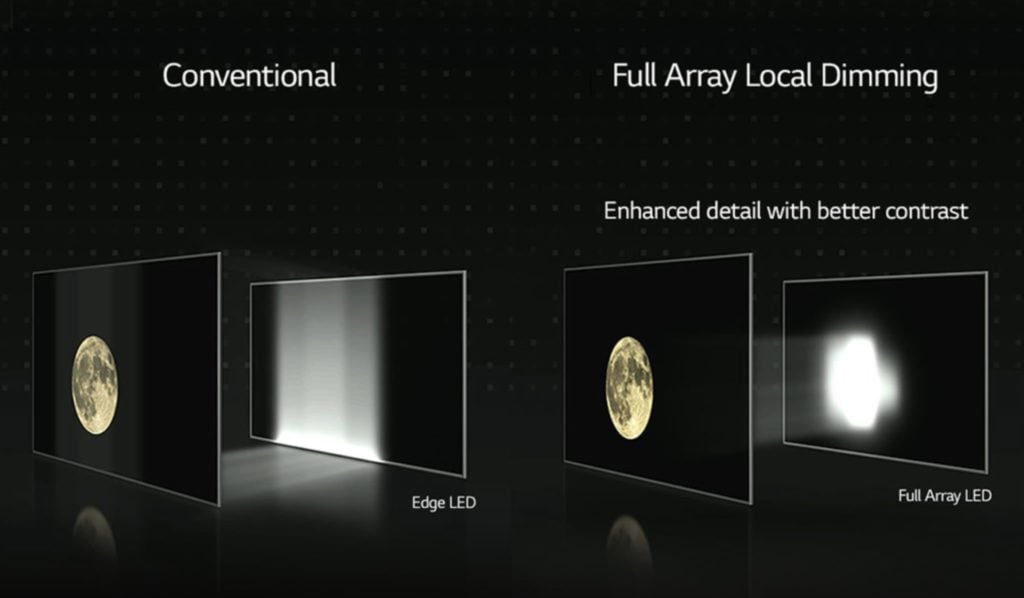
What the Spec • Mini-LED Explained Local Dimming Unlocked: How Mini-LED Zones Impact Contrast and Blooming Local dimming is the secret ingredient behind the jaw-dropping contrast of modern Mini-LED TVs. But what actually happens when a set advertises 500 or even 1,000 dimming zones? Below, you’ll see how zone count and algorithm tuning influence blooming, black levels, and brightness—plus an interactive demo that shows exactly how your favorite logo might glow a little differently depending on those specs. Mini-LEDLocal DimmingContrastBlooming Interactive Demo: How Zone Count Affects Blooming Adjust the slider from 24 to 1000 zones to simulate how fine-grained Mini-LED dimming reduces haloing. The centered “Technichole” logo and white subtitle mimic real HDR scenes. Click them to toggle each layer, and experiment with different room lighting. Zone count 256 zones Aggressive dimming (less halo, more risk of black crush) Room lighting Dark roomDim roomBright room Show center logo Show subtitle Reset Logo / Subtitle (image) Halo (backlight zone blend) Tip: The logo is truly centered (not top-right). Click it to toggle visibility. How Local Dimming Works Every LCD TV relies on a backlight shining through a filter of pixels. The problem is that standard LED panels light the entire screen at once— so when a bright object appears against black, some of that light leaks through, washing out the darkness. Local dimming changes the game by dividing the backlight into zones that can dim or brighten independently. When a star glows on a black sky, only the few zones behind that star brighten. In a high-zone Mini-LED TV, those clusters are tiny, allowing precise control. With just a few dozen zones, you’ll see halos; with hundreds or thousands, you get deep blacks and crisp highlight separation that rival OLED displays. Zone Count vs. Real Performance Zone count is a helpful metric, but it’s not the whole story. The way each zone’s brightness “spills” into its neighbors—the diffusion algorithm— matters just as much. Two TVs might both claim 500 zones, yet one can look visibly cleaner because its transitions and diffusion are tuned better. That’s why our interactive slider gives you both the number of zones and a “dimming aggression” option, representing how quickly a TV kills its halos. High aggression kills blooming but risks black crush, where shadow details vanish. Softer dimming keeps detail but allows a faint halo around subtitles. Every manufacturer tunes that balance a little differently. Why Subtitles and Logos Are a Torture Test Subtitles, channel bugs, and sports scoreboards all combine small, bright shapes with a dark background. They sit still for long stretches, making halos easy to spot. In the demo above, try switching the logo off and on; you’ll see how a concentrated highlight spreads depending on your zone count. That same blooming you’re seeing in simulation is what reviewers point out when they praise “tight halo control.” Mini-LED vs OLED in Everyday Viewing OLED pixels are self-emissive: each one turns off completely when black, producing essentially infinite contrast. But OLEDs can’t yet reach the extreme brightness levels of top Mini-LEDs, especially for HDR in bright rooms. Mini-LED bridges that gap. You get near-OLED depth with punchier HDR highlights—plus better lifespan and no burn-in worries for households that watch varied content or leave static UI elements on screen. Room Lighting Changes Everything Watching in a pitch-black room amplifies halos because your eyes adapt to darkness. That’s why the demo includes a lighting selector: even modest bias lighting behind the TV can make blooming less distracting. In bright living rooms, ambient light naturally hides halos— which is one reason bright-room buyers love high-brightness Mini-LEDs. Calibrating Your Own TV Start in Filmmaker/Movie mode for accurate tone mapping. Set Local Dimming to “High” (drop to Medium if blacks look crushed). Enable bias lighting to reduce perceived haloing in dark rooms. Test with subtitles and star-field content to see your panel’s true limits. Keep firmware updated; many brands quietly improve dimming performance over time. The Takeaway Mini-LED isn’t just marketing—it’s a genuine leap in how LCD panels handle light. More zones mean finer control, smoother HDR, and fewer compromises for brightness-hungry households. The next time you compare TVs in a store, focus less on peak-nit numbers and more on how cleanly each set handles bright text over black. That’s where good local dimming truly shines.

What The Spec

OLED Displays: Deep Blacks, Stunning Contrast, and the Realities Behind the Glow

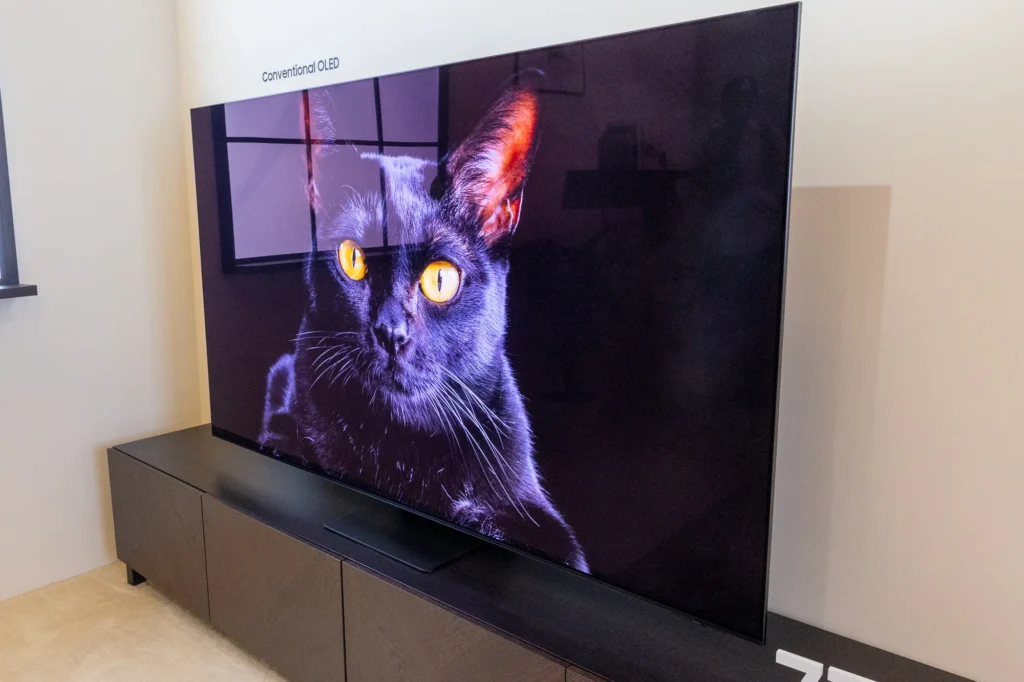
What the Spec • OLED Explained OLED Displays: Deep Blacks, Stunning Contrast, and the Realities Behind the Glow OLED technology delivers the most striking visuals in modern TVs—perfect blacks, near-instant response, and unparalleled contrast. But perfection comes with a few trade-offs. Here’s what makes OLED special, what shortens its lifespan, and how “burn-in” actually happens. OLED vs LED Display Lifespan Burn-in Explained Interactive: See How OLED Burn-In Forms Over Time OLED pixels emit their own light. That means each pixel wears down individually. If one part of the screen displays the same image for too long—a channel logo, a news ticker, a scoreboard—that section can age faster, leaving behind a faint “ghost” image. Adjust the slider below to simulate how that looks. LOGO Simulated Usage Hours Toggle Moving Image Burn-in: 0% What Makes OLED Different OLED—short for Organic Light-Emitting Diode—doesn’t rely on a backlight. Each pixel generates its own light, allowing it to turn off completely to create true black. This is why OLED TVs produce infinite contrast ratios, making shadows, colors, and details pop in ways traditional LED TVs can’t replicate. Without a backlight, OLED panels are also thinner, lighter, and more flexible. They enable cutting-edge designs like ultra-slim wall mounts or rollable displays. The technology excels at displaying dark scenes and subtle lighting transitions—what film enthusiasts call “cinematic depth.” The Beauty and the Burn Every pixel in an OLED screen ages slightly each time it lights up. Bright static elements, such as logos or UI bars, can accumulate wear faster than other areas. The result, after thousands of hours, can be burn-in—a shadow or outline that lingers even when content changes. Burn-in doesn’t happen overnight, and modern OLEDs use screen shift, pixel refresh, and logo luminance adjustment to minimize it. But it’s still a natural side effect of a self-emissive display. OLED Lifespan: How Long It Really Lasts Manufacturers rate OLED panels for roughly 30,000 to 100,000 hours of use before brightness degrades by 50%. At 5 hours per day, that’s well over a decade of typical viewing. The lifespan varies by model, usage habits, and how often bright static images appear on screen. The blue sub-pixels in OLEDs wear out fastest, which is why manufacturers tweak pixel structures and brightness limits to extend life. Features like pixel refresh cycles (run automatically after power-off) help rebalance the panel over time. Why OLEDs Aren’t as Bright as Mini-LEDs OLED pixels are self-contained light sources, which limits the peak brightness each can safely output without accelerating wear. Most consumer OLED TVs hover between 600–1,000 nits of peak brightness, while premium Mini-LED sets can exceed 2,000 or even 3,000 nits. In practice, OLED brightness is usually plenty for controlled lighting environments. But in very bright rooms, reflections can reduce perceived contrast. That’s why OLED shines best in living rooms or theaters where you can manage ambient light. Benefits: Why Enthusiasts Still Choose OLED True Blacks: Each pixel turns off completely, producing unmatched depth and realism. Perfect Contrast: Adjacent pixels can be fully on or fully off, delivering pinpoint dynamic range. Instant Response: Virtually zero motion blur—ideal for gaming and fast-paced scenes. Wide Viewing Angles: Colors and contrast remain consistent off-axis. Thin Design: No backlight layers means sleek, lightweight panels. Drawbacks: What to Keep in Mind Potential Burn-in: Prolonged static images can leave faint residue. Lower Peak Brightness: Less suitable for sunny rooms or HDR scenes demanding intense highlights. Gradual Degradation: Blue sub-pixels fade fastest, slightly shifting color balance over time. Cost: Manufacturing OLED panels remains expensive compared to LED or QLED. OLED vs QD-OLED vs LED: A Quick Comparison QD-OLED (Quantum Dot OLED) blends OLED’s perfect blacks with quantum dots for improved color and higher brightness. Standard LED and Mini-LED sets can glow brighter and resist burn-in but lack the same pixel-level control. Choosing between them comes down to environment and priorities: OLED for cinematic perfection, Mini-LED for bright rooms. Preventing Burn-In at Home Most OLED TVs include preventive tools: Logo Luminance Adjustment: Detects static graphics and dims them slightly. Pixel Shift: Subtly moves the entire image a few pixels to distribute wear. Panel Refresh: Recalibrates pixel voltage after long sessions or automatically at shutdown. You can also help by avoiding paused screens for long periods, reducing static HUD elements in games, and alternating content types. Used responsibly, most OLEDs stay burn-free for years. Bottom Line OLED delivers one of the most beautiful images available in consumer TVs—inky blacks, incredible contrast, and lifelike motion. While its lifespan and brightness don’t match today’s brightest Mini-LEDs, the visual quality continues to make OLED a favorite for movie lovers and gamers who value picture precision above all else.

What The Spec

VRR Explained: Why Variable Refresh Rate Makes Games Look and Feel Better

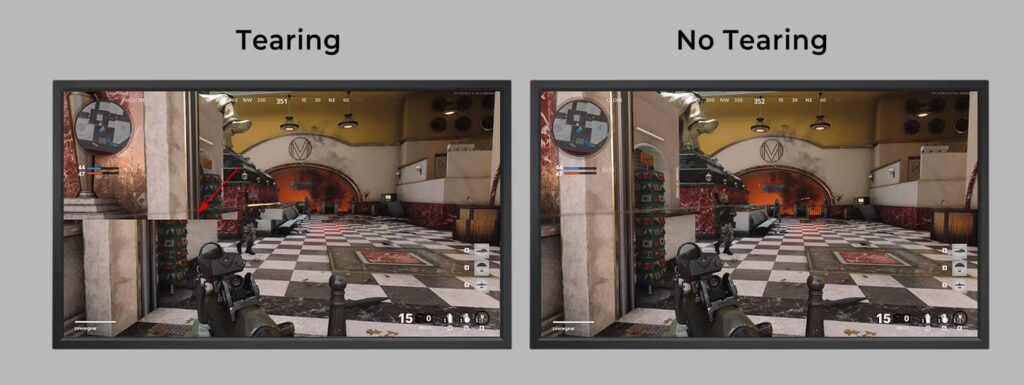
What the Spec • Variable Refresh Rate (VRR) VRR Explained: Why Variable Refresh Rate Makes Games Look and Feel Better Variable Refresh Rate keeps your TV’s refresh cycle in sync with your console or PC so motion looks smooth, input feels responsive, and distracting artifacts like tearing and judder largely disappear—even when frame rates bounce around. This guide breaks down how VRR works on modern TVs and why it matters. HDMI 2.1 PS5 • Xbox Series X Gaming Essentials Watch: PS5 demo — What VRR is all about The core problem VRR solves Every TV refreshes the screen a certain number of times per second—think 60Hz, 120Hz, or even 165Hz. Meanwhile, your console or PC is creating new frames as fast as it can, but the number of frames it produces isn’t perfectly steady. When these two rhythms drift apart, you can see two common issues. First is screen tearing: a horizontal seam where part of the screen shows the next frame while the rest shows the previous one. Second is judder or stutter, which appears as uneven motion because the TV displays some frames for longer than others while it waits for the next update. Both pull you out of the action. Variable Refresh Rate aligns the TV’s refresh to the moment your console finishes each frame. Instead of forcing the TV to refresh at a fixed pace, VRR lets the display wait a fraction of a second and update exactly when a new frame is ready. The result is fewer tears, steadier motion, and a sense that the controller is more directly connected to what you see. How VRR actually works (plain English) Imagine a conversation where one person speaks at a fixed tempo while the other replies with natural pauses. A fixed-refresh TV never slows down or speeds up; it just keeps “talking,” sometimes cutting the other speaker off (tearing) or repeating itself until the reply arrives (stutter). With VRR, the TV listens and answers when the console finishes a sentence. Both sides stay in sync, so motion looks continuous even as performance fluctuates. The key is timing. Unlike classic V-Sync on PCs (which can increase input lag), VRR coordinates delivery without making the console wait an extra cycle for the next refresh. That’s why it preserves responsiveness. VRR aligns the TV’s refresh with the console or PC’s frame timing to reduce tearing and judder. Interactive glance: “VRR Off” vs “VRR On” The simple demo below simulates a moving object. The left pane mimics a fixed refresh with inconsistent frame arrival (steppy movement), while the right pane simulates VRR’s smoother pacing. VRR Off (fixed refresh) Frame pacing jitter VRR On (refresh sync) Overall speed Speed: Medium Pause animation Simulate 60Hz displaySimulate 120Hz displaySimulate 165Hz display Higher refresh capability raises smoothness potential. VRR, ALLM, and gaming modes on TVs On modern televisions, VRR often arrives alongside ALLM (Auto Low Latency Mode) and a dedicated Game Mode. ALLM automatically switches the TV into a low-lag profile when it detects a console, trimming image processing to keep button presses feeling instantaneous. Game Mode further reduces extra post-processing, preserving sharpness and motion clarity while slashing input lag. Together with VRR, these features prioritize timing and smoothness over heavy processing, which is exactly what fast-paced games need. Common formats and what to look for You’ll see VRR listed in a few ways. On HDMI 2.1 devices (PS5, Xbox Series X|S, modern GPUs), it will be advertised simply as HDMI VRR. Some TVs also support AMD FreeSync, and PC-centric displays may mention G-SYNC Compatible. All pursue the same goal—synchronize the refresh cycle with the frame output—but compatibility varies. For a console-first setup, HDMI VRR is the essential spec. Pay attention to the VRR range, which is the span of frame rates the TV can follow. Many 120Hz TVs support somewhere near 48–120Hz. If a game dips below the lower bound, a technique called LFC (Low Framerate Compensation) can kick in, presenting the same frame multiple times to stay in sync and keep the motion cadence stable. Wider ranges and reliable LFC deliver the most consistent experience. Why VRR still helps on 165Hz or 120Hz sets A higher refresh ceiling gives your TV more chances each second to land on the console’s new frame. That alone can reduce visible judder. But games rarely run at an absolutely even 60, 120, or 165 frames per second. VRR captures those in-between moments, lining the refresh up with reality rather than a neat fraction. Even at very high refresh rates, VRR continues to smooth out micro-stutter you might otherwise notice in panning scenes and fast camera turns. When you’ll notice VRR the most Rapid camera pans in open-world games, racing titles with sweeping turns, and shooters with quick aim adjustments are where VRR shines. You’ll also notice it when a game’s frame rate shifts as you move from dense cityscapes to simpler interiors. Instead of a sudden hitch, motion simply feels more consistent. And in competitive play, the benefit isn’t just visual—your inputs feel more directly tied to the on-screen response. How to enable VRR on your setup The process is straightforward. First, connect your console or PC to a TV input that supports HDMI 2.1 features and verify that the port is set to an enhanced or high-bandwidth mode in the TV’s settings. Next, make sure the console has VRR toggled on in its video settings. Finally, turn on your TV’s Game Mode or equivalent. If your TV shows per-input status overlays, you can confirm VRR is active once a compatible game is running. VRR myths to set aside One common misconception is that VRR magically raises frame rate. It doesn’t; it simply matches the display to the frame timing you’re actually getting. Another myth is that VRR is only helpful at very low frame rates. In truth, frame delivery is rarely perfect, so even fluctuations around 60 or 120 can create micro-stutter that VRR smooths out. Finally, some assume VRR increases input lag—on modern

Hisense, Televisions

Hisense U7: The Premium “Value Flagship” That Makes Other TVs Hard to Justify

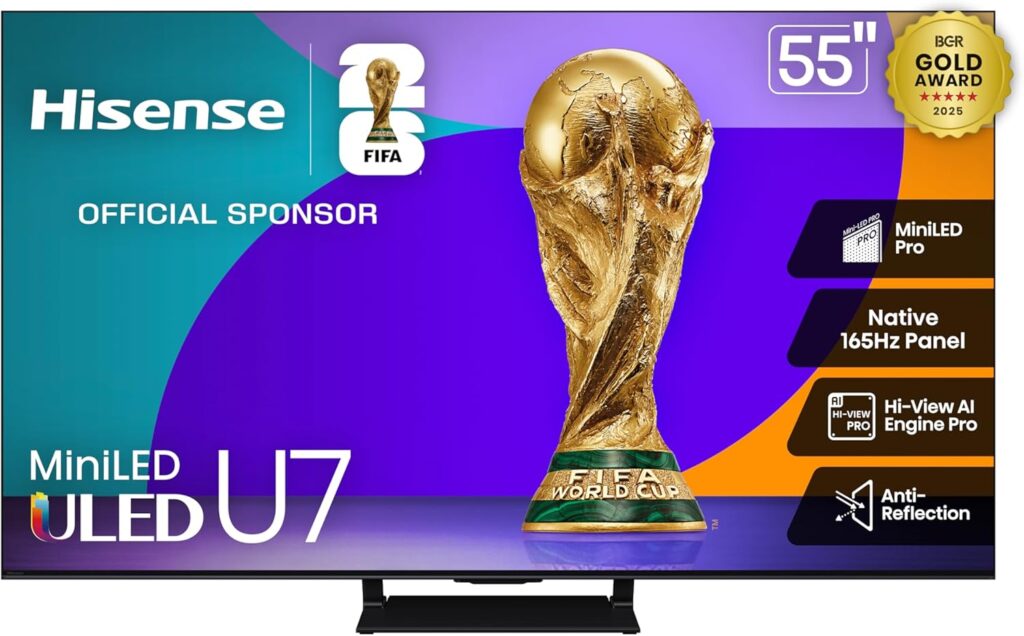
Hisense U-Series • U7 Mini-LED Hisense U7: The Premium “Value Flagship” That Makes Other TVs Hard to Justify When buyers ask for the sweet spot between performance and price, this is the TV that keeps coming up. The Hisense U7 doesn’t just compete with other brands’ mid-tier models—it chases their flagships while staying friendlier on the wallet. Updated for the 2025 model year Top Value Pick Watch: Hisense U7 in Action Featured Configuration Hisense 55" U7 Mini-LED ULED 4K UHD Best Premium Gaming Google Smart TV (55U75QG, 2025 Model) QLED, Native 165Hz, VRR 288, up to 3000 nits, HDR10+, Dolby Vision IQ · Atmos, IMAX Enhanced, 2.1.2-channel sound. This is the size most living rooms, bedrooms, and apartments can actually use—and it’s where the U7 really shines. Why it’s different: It behaves like a flagship in motion, brightness, and gaming features, but stays in a price range most buyers can realistically reach. Mini-LED + QLED Native 165Hz panel VRR up to 288 Up to 3000 nits Dolby Vision IQ · Atmos IMAX Enhanced Looking for the one TV that covers sports, movies, and serious gaming without paying flagship prices? This 55U75QG is the top value option we’d point most buyers to first. ➜ View the Hisense 55" U7 on Amazon This is an affiliate link. It helps support Technichole at no extra cost to you. Why the Hisense U7 Fits Real Homes Better Than “Spec Sheet” TVs When someone walks into a store asking what TV gives them the most for their money, they usually don’t mean “the absolute cheapest” or “the most expensive flagship.” They want the TV that feels like a big step up without feeling reckless. That’s where the Hisense U7 (55U75QG) lands—in that rare space where premium performance still makes financial sense. On paper, the U7 reads like a flagship: Mini-LED backlight, QLED color, native 165Hz refresh rate, and up to 3000 nits of peak brightness. In practice, it’s the combination of these features that delivers something most people notice immediately—clarity, punch, and control, whether you’re watching daytime sports or late-night cinema. Mini-LED + QLED: Bright, Controlled, and Actually Useful Mini-LED isn’t just a buzzword here. The tighter control over the backlight helps the U7 push highlights hard without turning dark scenes into a cloudy mess. Paired with QLED color, the U7 gives you the kind of contrast and saturation most people expect only from higher-priced models. If your room has windows, overhead lighting, or both, this matters. The U7’s brightness reserves and local dimming work together to keep details visible and colors lively, instead of washed out. It’s built for real living spaces, not only dark, dedicated theater rooms. Native 165Hz and VRR 288: Built Around Modern Gaming For gamers, the specs on this set aren’t marketing fluff—they’re the features that keep motion and control feeling locked in. A native 165Hz panel means the TV was designed with high frame rates in mind from the start, not as a software trick layered on afterward. With VRR up to 288 and a gaming-focused feature set, the U7 is ready for competitive play and fast-moving titles. You’re not just getting a TV that can “handle games”—you’re getting one that feels intentionally tuned for them, while still looking excellent with movies and streaming. Up to 3000 Nits: Bright Enough to Compete With Your Room Numbers don’t tell the whole story, but they do matter. Up to 3000 nits of peak brightness gives the Hisense U7 enough headroom to make HDR content look alive, not just slightly enhanced. That means sun reflecting off metal in an action scene, specular highlights in city skylines, and bright elements in sports content all stand out the way they were meant to—without you needing to dim every light in the room first. Dolby Vision IQ, Dolby Atmos, and IMAX Enhanced The U7 goes beyond checkboxes by supporting the formats people actually see in their apps: Dolby Vision IQ for smarter HDR tone-mapping based on room conditions, Dolby Atmos for rich spatial audio when paired with capable sound systems, and IMAX Enhanced for optimized content where available. You’re not just buying into a panel—you’re buying into a TV that’s ready for the content ecosystem people are actually using in 2025. Why We Call the Hisense U7 the “Top Value” Pick In most lineups, there’s a model that quietly does more than it should at its price. For Hisense, in 55 inches, the U7 (55U75QG) is that set. It’s the one we can recommend to a wide range of buyers—gamers, sports fans, movie watchers—without feeling like we’re asking them to over-spend just to keep up with the flagship race. If you want a TV that behaves like a premium model where it counts—motion handling, brightness, HDR impact, and gaming—while still landing in a reachable price bracket, this is the one that makes the most sense. For buyers who don’t want to compromise but also don’t want to chase the most expensive option on the wall, the Hisense U7 is our top value recommendation. Ready to Check Current Pricing? You can see the latest price, specs, and customer feedback for the 55-inch Hisense U7 here: Hisense 55" U7 Mini-LED ULED 4K UHD Best Premium Gaming Google Smart TV (55U75QG, 2025 Model) If you’re comparing several models and not sure which way to go, start with this one as your benchmark—then see what, if anything, really justifies costing more.


Technichole is an Orlando, Florida–based home theater review site focused on TVs, soundbars, and smart setups that fit real homes and real budgets. We provide clear, honest guidance to help you build the perfect entertainment space without the hype.

© 2025 Created with 407 Development

Scroll to Top